
- DriveForge
- Guides
- Restore full capacity
Fix
How to restore a USB drive or SD card to its full capacity
A drive that shows far less space than its label has one of three stories: old partitions left behind by a boot image, a fake that never had the space, or plain unit rounding. Each has a different fix.
Short answer
If the drive lost space after being used as a bootable or installer stick, the space is still there, hidden outside a small partition. Erase the whole drive and format it as one volume: DriveForge does that for free on Android, as do diskpart clean on Windows and Disk Utility on a Mac. If the drive never held what it claims, it is a fake, and it can only be restored to its real, smaller size.
First, work out which case you have
| What you see | Likely cause | Fix |
|---|---|---|
| A "64 GB" drive shows about 58 to 59 GB | Normal. Makers and Windows count gigabytes differently. | Nothing to fix |
| The drive shows a few MB or a couple of GB after being used as a bootable or installer stick | A small partition, with the rest unallocated | Erase and reformat the whole drive |
| The drive shows two or more small volumes | Several leftover partitions | Erase and reformat the whole drive |
| It shows the full size, but files get corrupted once it is partly full | Fake capacity | Test it, then return it or restore it to its real size |
| The size is wrong and the drive errors on every write | Failing or write-protected drive | See write-protected drives |
Case 1: Normal "missing" space
Drive makers count 1 GB as 1,000,000,000 bytes. Windows counts in binary units, where a gigabyte is about 7 % bigger, and the filesystem keeps a little for its own records. So:
- 32 GB shows as about 29.8 GB
- 64 GB shows as about 59.6 GB
- 128 GB shows as about 119 GB
- 256 GB shows as about 238 GB
If your numbers are in that range, the drive is complete.
Case 2: Leftover partitions from a boot image
Writing an operating system installer or a "live" image to a stick replaces its whole layout. The image brings its own partition table, often with one small partition that Windows can show and others it can't. Afterwards the stick looks tiny, and a normal Format only reformats that one small partition. The rest of the space is not lost. It is just outside the partition.
The fix is to throw away the old partition table and create one volume across the whole drive. That erases everything on it.
On Android, with DriveForge (free)
- Connect the driveUse an OTG adapter, open DriveForge and grant USB access. The Layout bar on the home screen shows the drive as it really is: the small partitions and the unallocated space.
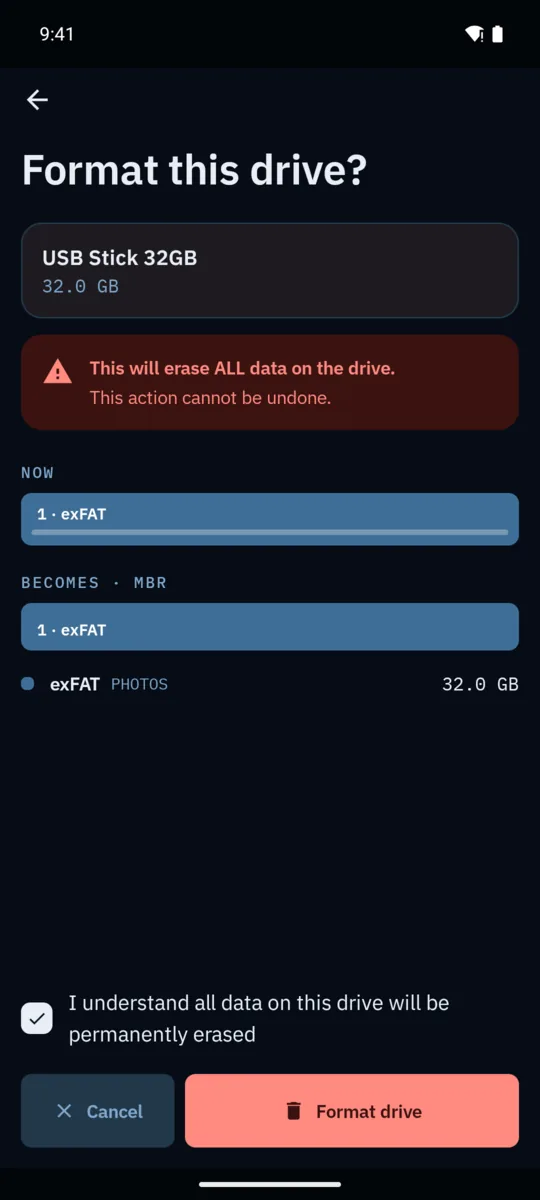
- Tap Format this driveThe Simple tab plans one volume over the whole drive, replacing the old layout. The app shows the layout now and the layout it will become.
- Choose a filesystemexFAT suits most drives. FAT32 is free up to 32 GB.
- Confirm and wait for the verified resultThe screen shows the formatted capacity, now close to the label.
If the old layout is badly scrambled, open the drive's three-dot menu and choose Erase drive… first. A Quick erase clears the partition table and filesystem signatures in seconds. Then format.
On Windows
Disk Management often refuses to delete partitions on removable drives, so use diskpart. Open a Command Prompt as administrator and type each line, pressing Enter after each:
diskpartlist diskand find your USB drive by its sizeselect disk Nwith N as that drive's numbercleancreate partition primaryformat fs=exfat quickassign
Check the disk number twiceclean wipes whichever disk is selected, without asking. Selecting the wrong number erases the wrong disk. Confirm the size shown by list disk before you go on.
On a Mac
Open Disk Utility, choose View, Show All Devices, select the drive itself (the top entry, not a volume beneath it) and click Erase. Pick ExFAT and, for the scheme, Master Boot Record or GUID Partition Map.
Case 3: The drive is a fake
A counterfeit drive reports a capacity its memory chip does not have. It formats at the claimed size and then loses whatever is written past the real one. No tool can give it the space on the label, because the space does not exist.
- Prove itRun a fake capacity test. It reports the real usable size.
- Get a refundif you still can.
- If you keep the drive, restore it to its real sizeIn DriveForge, a fake verdict offers Restore to real size, a Pro feature. It reformats the drive to the capacity that really exists, so your devices stop writing past the end. A "256 GB" fake becomes an honest 16 GB drive, or whatever it truly is.
Case 4: None of the above
If the drive can't be erased or formatted by any tool, reports a size of zero, or switches to read-only, its controller or memory is failing. Copy off anything you can still read and replace it. See write-protected drives for how to tell.
Common questions
Why does my USB drive show less space than it should?
A little less is normal, because makers and operating systems count gigabytes differently. A lot less usually means the drive carries a small partition left behind by a bootable image, with the rest of the space unallocated. Erasing the drive and formatting it as one volume brings the space back.
How do I get the full capacity back after making a bootable USB?
Erase the drive's partition table and create a single new volume over the whole drive. On Android, DriveForge's Format does this in one step. On Windows use diskpart's clean command, and on a Mac erase the top-level device in Disk Utility.
Can a fake USB drive be restored to its advertised capacity?
No. The advertised capacity was never there. A fake can be reformatted to its true, smaller size so that it stops corrupting files.
Does formatting restore a drive's full size?
Only if the whole drive is repartitioned. An ordinary format in Windows reformats the existing partition and leaves the layout alone, so a drive with a small partition stays small.