
- DriveForge
- Guides
- Format an SD card on Android
Format
How to format an SD card to exFAT or FAT32 on Android, without a PC
A camera, a console or a dashcam often wants its card in one specific format. Android's own format button doesn't let you choose, but with a USB card reader you can still do it from the phone.
Short answer
Put the card in a USB card reader and plug the reader into your phone with an OTG adapter. Open DriveForge, tap Format this drive, choose exFAT or FAT32, and confirm. Both are free, with FAT32 free up to 32 GB. Android's own Settings → Storage → Format also works for a card in the phone's slot, but it picks the filesystem for you.
Which format should an SD card have?
The SD standard itself assigns a filesystem to each card size, and devices are built around it:
| Card type | Capacity | Standard format |
|---|---|---|
| SD (SDSC) | Up to 2 GB | FAT16 |
| SDHC | 4 GB to 32 GB | FAT32 |
| SDXC | 64 GB and larger | exFAT |
Following the table is right most of the time. The usual exception is a device that only understands FAT32 and is given a 64 GB or larger card: many dashcams, security cameras, 3D printers and older consoles are like this. For those, see FAT32 on drives larger than 32 GB. There is a device by device list in exFAT vs FAT32 vs NTFS.
A tip for camerasIf the card is for a camera, a drone or a console, the device's own "format card" menu is the best tool, because it also creates the folders it expects. Use the methods below when the device has no such menu, refuses the card, or needs a format it can't make itself.
Method 1: Android Settings (card in the phone's slot)
If your phone has a microSD slot, Android can format the card in place:
- Open Settings, then StorageOn Samsung phones it is under Battery and device care (or Device care).
- Tap the SD cardOpen the three-dot menu and choose Storage settings if you don't see Format directly.
- Tap Format and confirmChoose the "portable storage" option if Android asks how to use the card.
Android chooses the filesystem itself and offers no setting for it. If you need a specific one, use Method 2.
Portable, not internalSome phones offer to format a card as "internal storage". That encrypts the card and ties it to that one phone: no camera, PC or other phone can read it afterwards. For a card you will move between devices, always choose portable storage.
Method 2: Choose exFAT or FAT32 with DriveForge
DriveForge formats over USB, so the card goes in a USB card reader. That is also the way to format full-size SD cards, which no phone slot accepts.
- Put the card in a USB card readerIf it is a full-size SD card with a lock switch on its side, slide the switch to the unlocked position (toward the contacts).
- Plug the reader into the phoneUse an OTG adapter, or a reader with a USB-C plug. Open DriveForge and tap Grant access when Android asks.
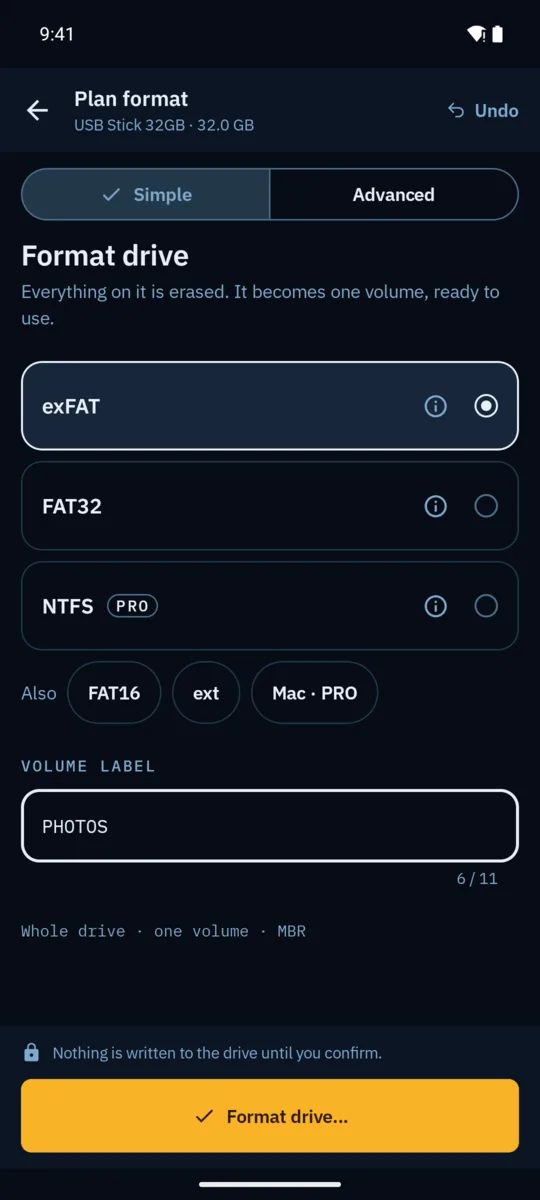
- Tap Format this driveStay on the Simple tab: it formats the whole card as one volume.
- Choose exFAT or FAT32FAT16 is there too, under "Also", for old 2 GB cards. Add a volume label if you want one.
- ConfirmCheck that the name and size on the confirmation screen are the card's, tick the box and tap Format drive.
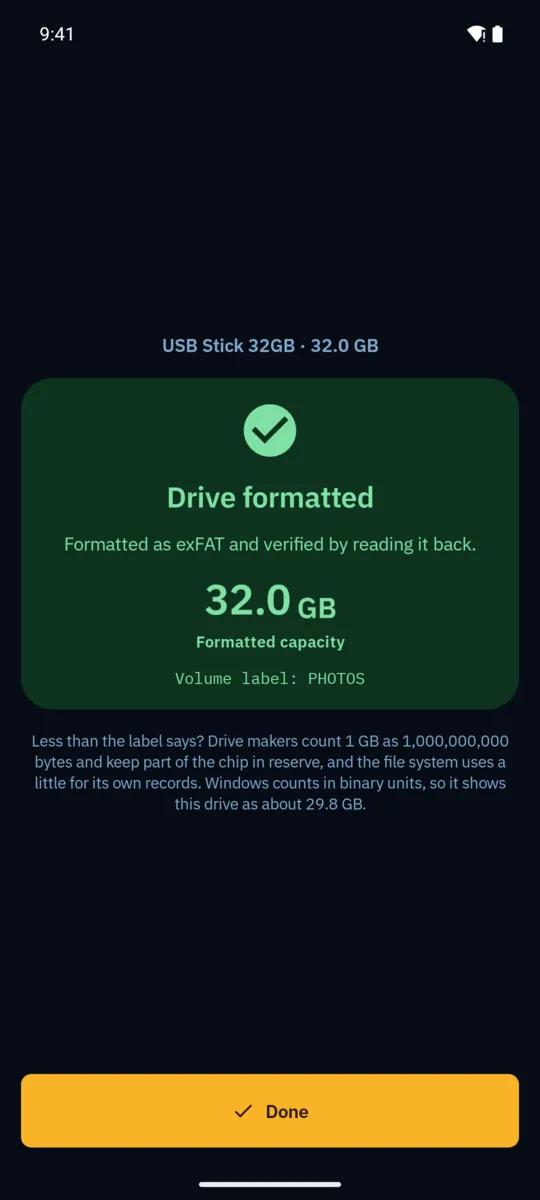
- Wait for Drive formattedDriveForge reads the new filesystem back to verify it. Eject the card from the drive's menu before pulling the reader out.
Why the card shows less space than its label
A "64 GB" card shows about 59 GB in Windows, and that is normal. Card makers count 1 GB as 1,000,000,000 bytes, Windows counts in binary units, and the filesystem keeps a little for its own records. A card that shows a small fraction of its label is a different matter: see restoring full capacity, and consider a fake capacity test if the card was suspiciously cheap.
Common questions
Can I format a microSD card to FAT32 on Android?
Yes. Put the card in a USB card reader, connect it to the phone, and choose FAT32 in DriveForge. FAT32 is free for cards up to 32 GB. For a 64 GB or larger card, FAT32 is part of DriveForge's one-time Pro unlock.
Can DriveForge format the card inside my phone's microSD slot?
No. It reaches drives over USB, so the card has to be in a USB card reader. A card that stays in the phone's slot is formatted from Android's Settings.
Should I use exFAT or FAT32 for an SD card?
Follow the card's size: FAT32 for 32 GB and smaller, exFAT for 64 GB and larger. Use FAT32 on a larger card only when the device requires it.
My SD card says it is write-protected. Can I still format it?
Not until the protection is off. Check the lock switch on the card and on any adapter. If the switch is fine, the card may have locked itself, which can't be undone. See the guide to write-protected cards.