
- DriveForge
- Guides
- Format a USB drive on Android
Format
How to format a USB drive on Android
You don't need a computer to format a USB stick. An Android phone with an OTG adapter can do it in about a minute, and with the right app you also get to choose the filesystem.
Short answer
Plug the drive into your phone with a USB OTG adapter. To format it with Android itself, open Settings → Storage, tap the drive and choose Format: Android picks the filesystem for you. To choose exFAT, FAT32, NTFS or ext4 yourself, use a formatter app such as DriveForge: tap Format this drive, pick the filesystem, confirm. Formatting erases everything on the drive.
What you need
- An Android phone that supports USB OTG. Most phones from the last several years do. If you are not sure, see how to check OTG support.
- An OTG adapter or cable. For most phones that is a small USB-C to USB-A adapter. A flash drive with its own USB-C plug goes straight into the phone and needs no adapter.
- The drive. A USB stick, a USB hard drive or SSD, or an SD or microSD card in a USB card reader.
Formatting erases the driveEvery method on this page deletes everything on the drive. Copy anything you want to keep to the phone or to another drive first.
Method 1: Android's own Settings
Android can format a USB drive by itself. It is the quickest route when you don't care which filesystem you get.
- Plug the drive inUse the OTG adapter. A notification about the USB drive appears after a few seconds.
- Open the storage settingsGo to Settings, then Storage (on Samsung phones: Settings, Battery and device care or Device care, Storage). The USB drive is listed under the phone's own storage.
- Tap the drive, then FormatOn most phones the option is in the three-dot menu, under Storage settings. Confirm when Android asks.
The limits of this method:
- You can't choose the filesystem. Android decides, usually FAT32 for drives of 32 GB or less and exFAT for larger ones. If your car stereo wants FAT32 on a 64 GB stick, or your PC wants NTFS, Settings can't do that.
- The names move around. Each phone brand arranges these menus differently, and a few hide the Format option entirely.
- It can't help with a drive Android doesn't recognize. A drive with a damaged or unknown filesystem sometimes shows only a "set up" or "fix" notification, and sometimes nothing at all.
Method 2: Choose the filesystem with DriveForge
DriveForge is a formatter app for Android. It talks to the drive directly over USB, so it works even when Android's file manager shows nothing for the drive, and it lets you pick the filesystem. Formatting to exFAT, FAT32 (up to 32 GB), FAT16 and ext4 is free. There are no ads, and it needs no root.
- Install DriveForge and plug the drive inGet it from Google Play, then connect the drive with the OTG adapter. The drive appears on the home screen by itself.
- Allow USB accessAndroid asks for permission for each USB device. Tap Grant access and accept the prompt. The card then shows the drive's name, its capacity and its current filesystem.
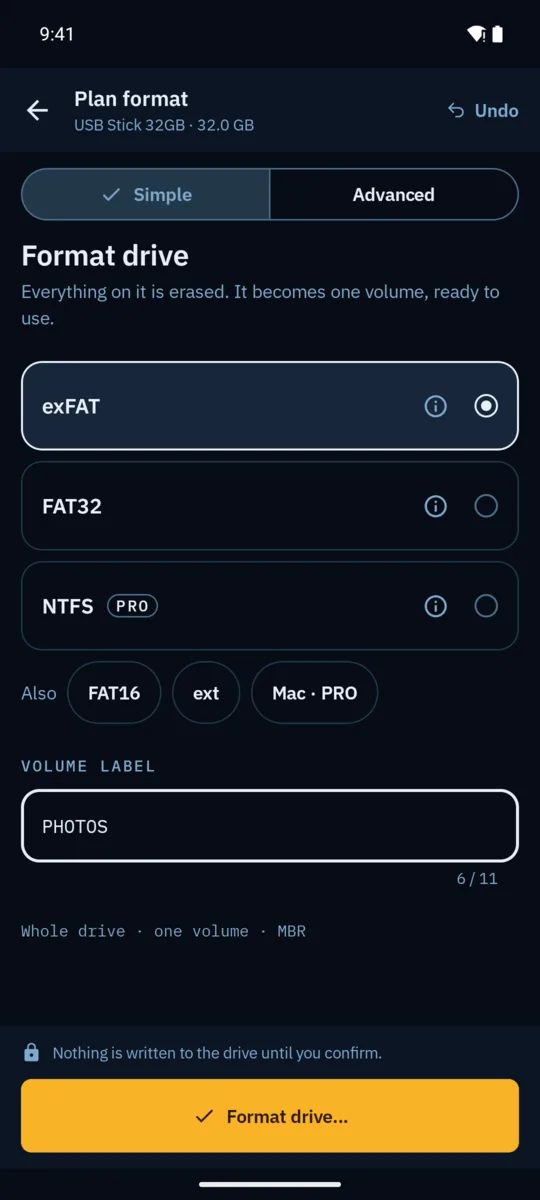
- Tap Format this driveThe Simple tab formats the whole drive as one volume, which is what you want in almost every case.
- Pick a filesystemChoose exFAT, FAT32 or one of the others. Each has a line saying what it is good for. Type a volume label if you want the drive to have a name.
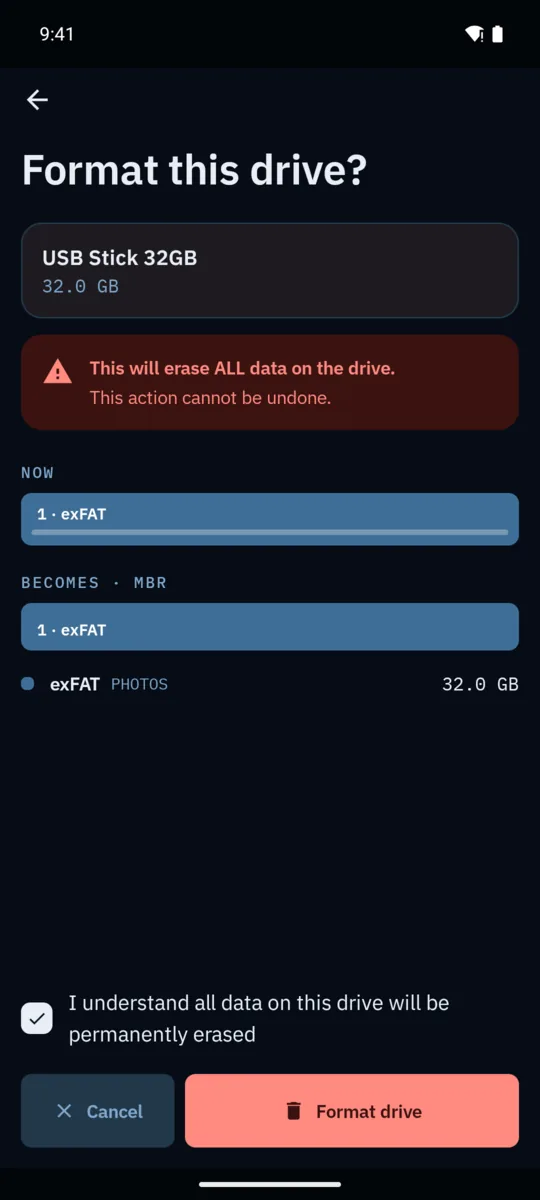
- Tap Format drive and confirmThe confirmation screen names the drive, shows its size and says plainly that all data will be erased. Tick the box and tap Format drive.
- Wait for the verified resultDriveForge writes the filesystem, then reads it back to check it. When it says Drive formatted, tap Done and eject the drive from its menu before you unplug it.
Which filesystem should you pick?
| Filesystem | Pick it when |
|---|---|
| exFAT | The drive moves between phones, cameras, Windows and Mac, or holds files bigger than 4 GB. The best default. |
| FAT32 | An older or simpler device will read it: a car stereo, a TV, a game console, a 3D printer. Files are limited to 4 GB each. |
| NTFS | The drive is only for Windows PCs. Most Android phones can't open NTFS on their own. |
| ext4 | The drive is for Linux, a Raspberry Pi or a NAS. |
There is a longer comparison, device by device, in exFAT vs FAT32 vs NTFS.
If something goes wrong
- The drive doesn't appear at all. It is almost always the adapter, the OTG setting or power. Work through the OTG checklist.
- The app says the drive is read-only. The card's lock switch is set, or the drive has locked itself. See write-protected drives.
- You want FAT32 on a drive bigger than 32 GB. That needs a tool that ignores the 32 GB cap. See FAT32 on large drives.
- The drive shows far less space than its label. It may be carrying an old partition layout, or it may be a fake. See restoring full capacity.
Common questions
Can I format a USB drive on Android without root?
Yes. Android lets an app talk to a USB drive once you approve the USB permission prompt for that drive. No root is involved, in Settings or in DriveForge.
Does formatting on a phone work as well as on a PC?
The result is the same filesystem a PC would write. What matters is that the tool verifies its work. DriveForge reads every format back before it reports success, so a drive that failed to take the format is not reported as done.
Why doesn't my phone show the Format option?
Some phone brands leave it out of Settings, and Android offers nothing for a drive it can't identify. A formatter app that reads the drive directly, such as DriveForge, does not depend on either.
Can I format an external hard drive or SSD this way?
Yes, the steps are the same. A spinning hard drive often needs more power than a phone supplies, so connect it through a USB hub with its own power supply.